
How to View Advisee Unofficial Transcript in MyGeorgeFox
- Log into MyGeorgeFox (my.georgefox.edu) using your GFU username and password.
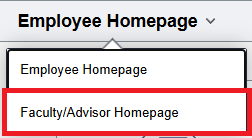
- Navigate to the Faculty/Advisor Homepage
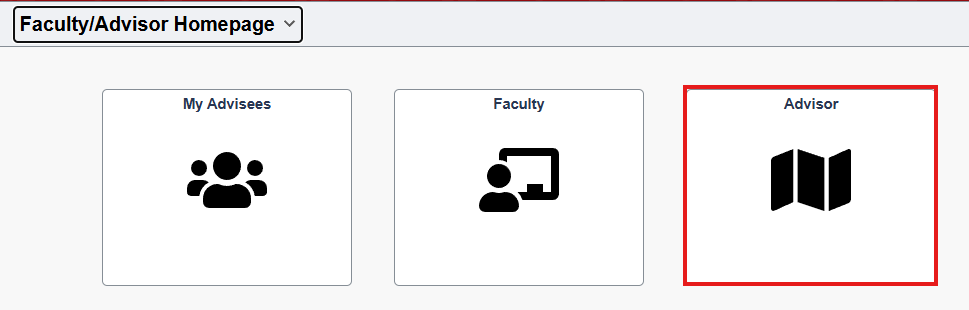
- Select Advisor Tile
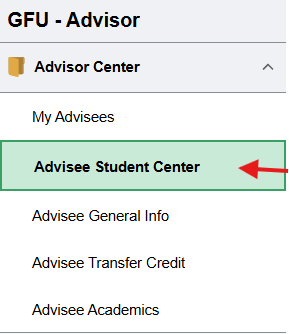
- Click Advisee Student Center under Advisor Center in the left menu.
- Check or Change Advisee from dropdown menu at the top of the Advisee Student Center.
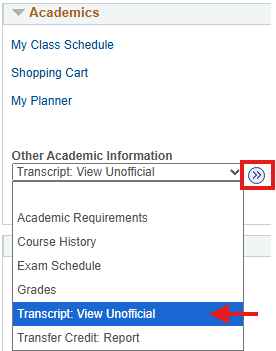
- Under the Academics header, select Transcript: View Unofficial from the other academic dropdown menu. Click the double arrow button to continue.
- Select Unofficial Transcript for the Report Type. Click View Report button.

- The PDF of the transcript should open in a new tab. Be sure you’ve allowed pop-ups if you have a pop-up blocker. In Chrome, this appears at the top of the url window.
- Then click View Report button again once pop-ups are allowed.