How to Enter or Change Grades in MyGeorgeFox
- Log into MyGeorgeFox (my.georgefox.edu) using your GFU username and password.
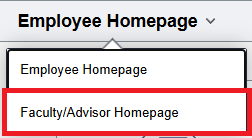
- Navigate to the Faculty/Advisor Homepage
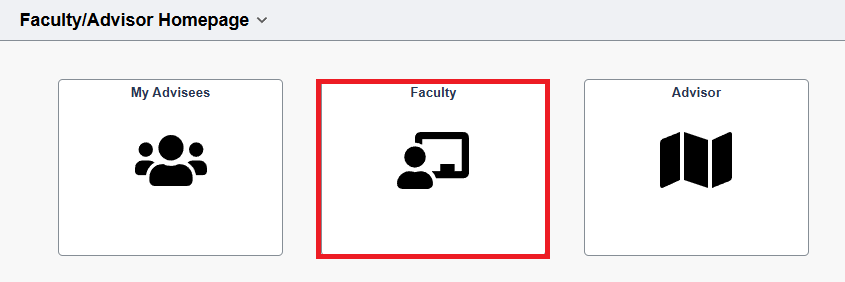
- Select Faculty Tile
To Enter Final or Mid-term Grades
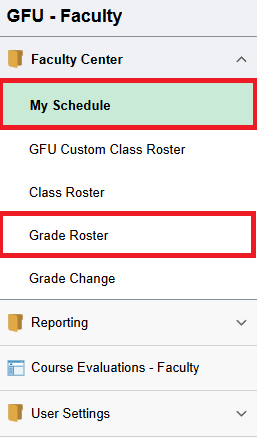
- Select My Schedule or Grade Roster from the left menu.
- If you click Grade Roster on the left Menu, it will default to the last roster you were in. You can click the Change Class button to switch classes.
- If this is the first time selecting a roster, it’ll ask you to select the roster from the My Schedule screen by following Step 5 below
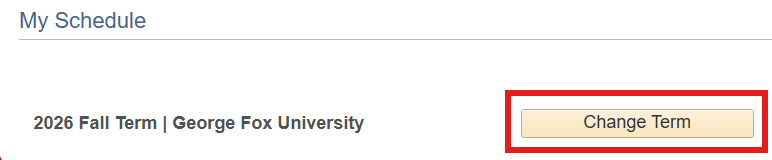
- The Term will likely default to the current term. If you need to change your schedule to a previous term, select the Change Term button, select the term you need and continue.
- To view Grade Roster - Navigate to My Teaching Schedule heading. Select “Grade Roster” icon next to the class.
- If the Grade Roster icon does not show - grade rosters have not been created yet. Grade rosters are produced in time for grade entry. Final Grades must be entered at the end of the term per the academic calendar.

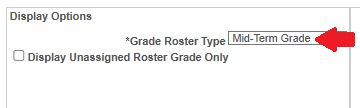
- Navigate to Display Options. Select appropriate Grade Roster Type (ie Mid-Term Grade or Final Grade)
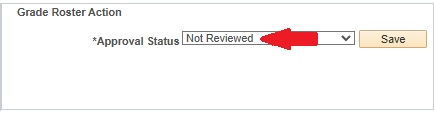
- Navigate to Grade Roster Action and set the Approval Status to Not Reviewed.
- If a class is large, use the arrows to navigate to the next page.

- To Post Final Grades: Navigate to Approval Status. Select Approved (Submit/Post button is not available until Approval Status is set to Approved)
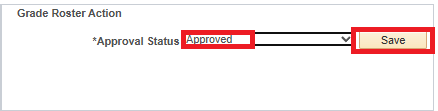
- Press Submit/Post button. A Success/Posted message is given when grades are posted. The grade will show in the Official Grade column on the roster.

To Change Grades
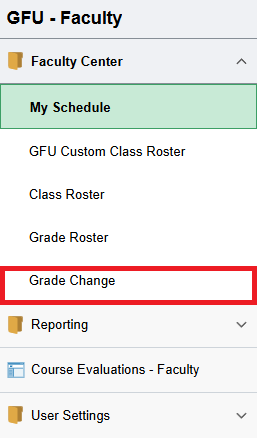
Submit your grade changes through the Grade Change eForm, which can be accessed by clicking the Grade Change link in the left menu.