How to View a Student’s FERPA Release in MyGeorgeFox
For faculty to look up a student in one of their classes
- In Fox360, use the Quick search at the top to look up a student by name or ID number.
- Go to the student's profile
- Click the dropdown that currently shows "General"
- Select the "Information Release" tab to view details.
For staff/faculty who have access to the Academic Department Homepage
- Log into MyGeorgeFox (my.georgefox.edu) using your GFU username and password.
- Navigate to the Faculty/Advisor Homepage
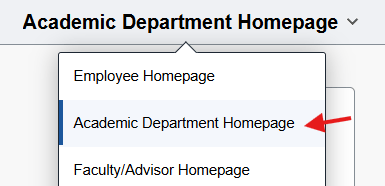
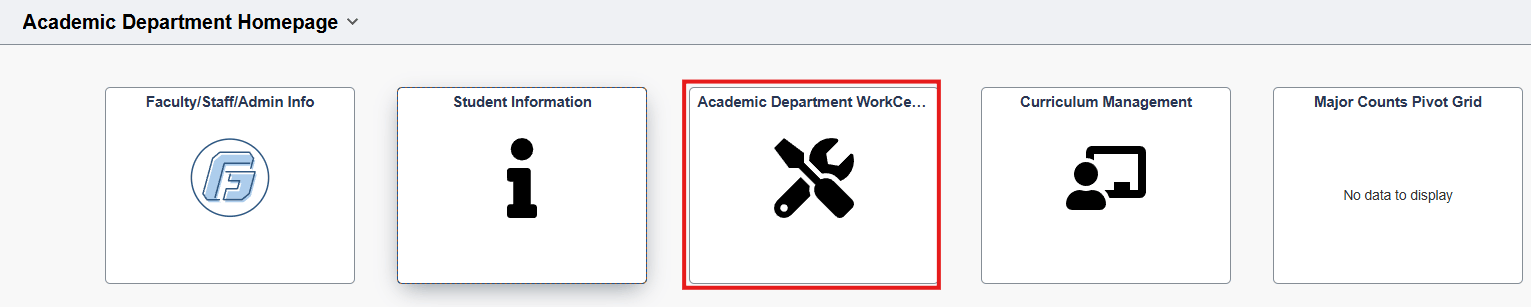
- Select the Academic Department WorkCenter.
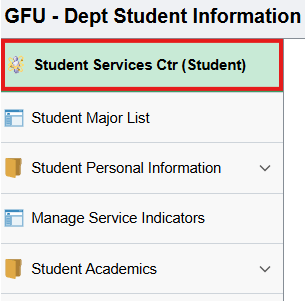
- Click Student Services Ctr (Student) in the left navigation.
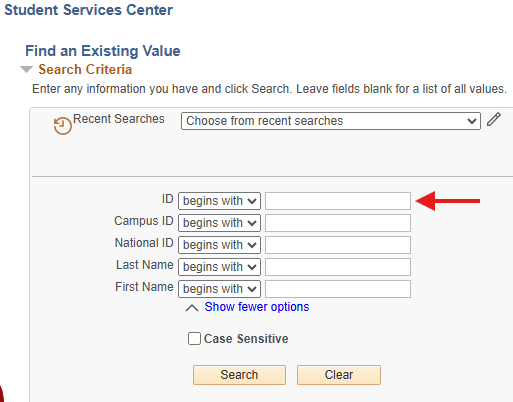
- Enter student’s ID number or First and Last Name.
- Click on the red Star to view the student’s positive service indicators. If there is no star, there is no FERPA release form on file.

- You should see the service indicator for RO FERPA Release Form. Click on the RFR code to see more details.

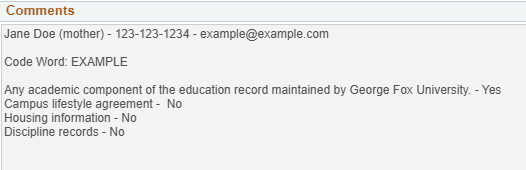
- To find details for the student’s release (who and what you are authorized to release), look at the Comments section.
- (if ‘Y’ or 'Yes', then you have permission to release details falling into that category to the person listed above).
For Advisors to look up their advisee
- Log into MyGeorgeFox (my.georgefox.edu) using your GFU username and password.
- Navigate to the Faculty/Advisor Homepage
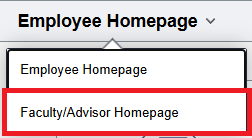
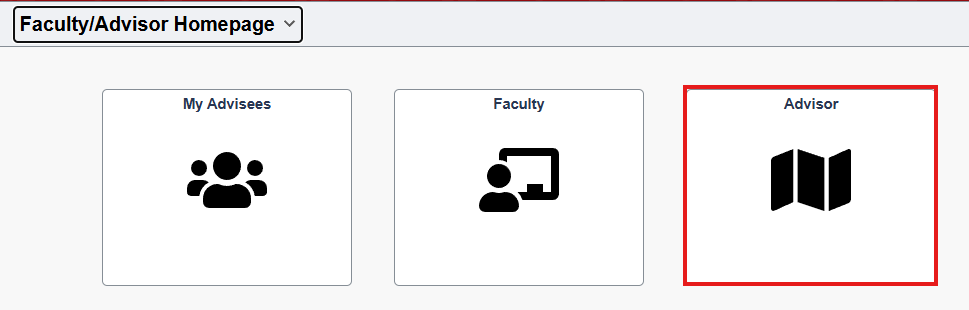
- Select Advisor Tile
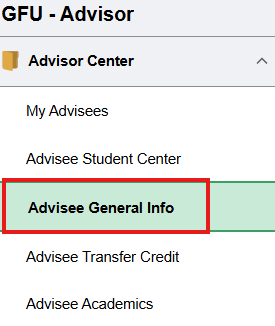
- Click Advisee General Info under Advisor Center in the left navigation.
- Select the advisee you want from the dropdown menu option, click the Change button.
- Review the Service Indicators section to look for the RO FERPA Information.
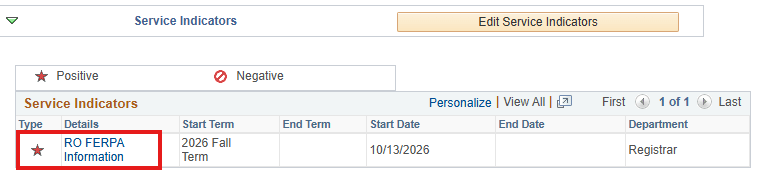
- Click on the link to see details for the release.
- To find details for the student’s release (who and what you are authorized to release), look at the Comments section.
- (if ‘Y’ or ‘Yes’, then you have permission to release details falling into that category to the person listed above).
