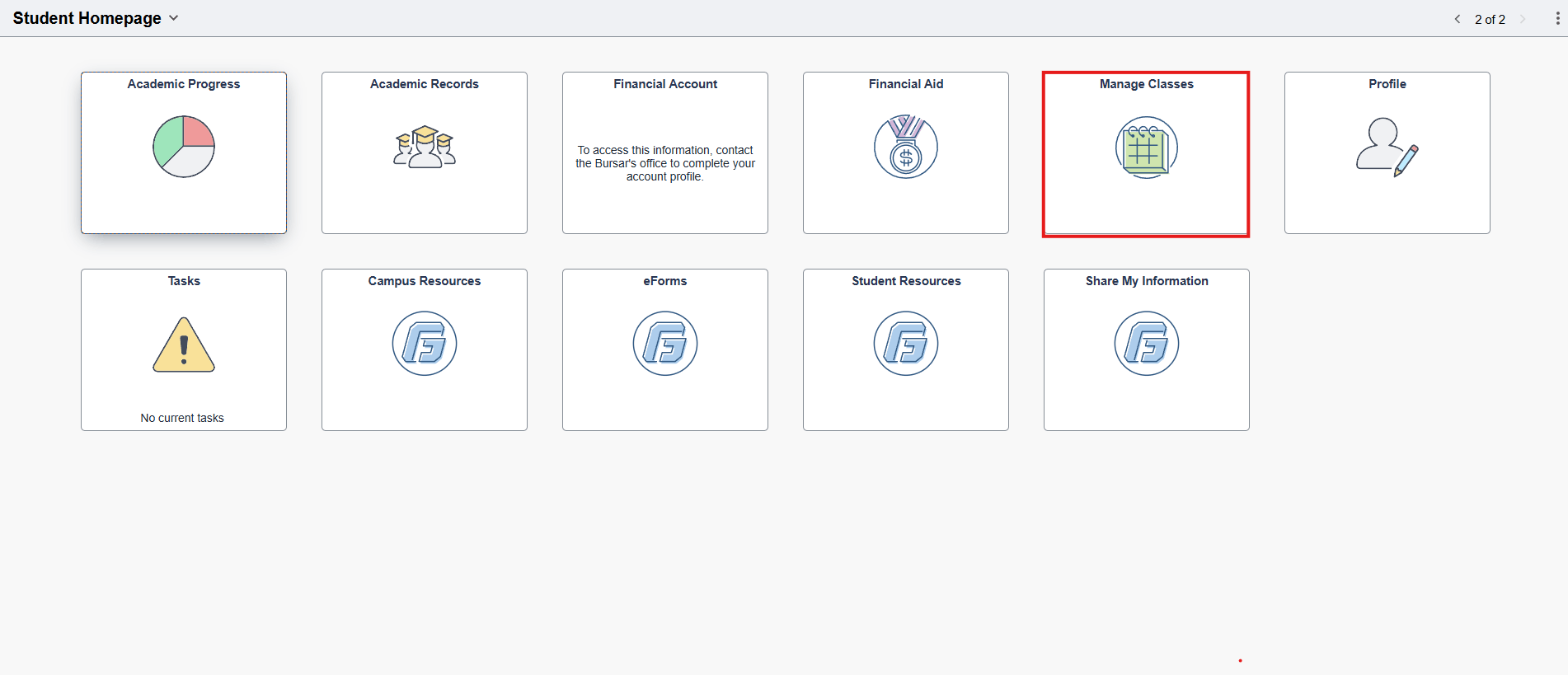
Log into MyGeorgeFox (my.georgefox.edu) using your GFU username and password.
Click Manage Classes.
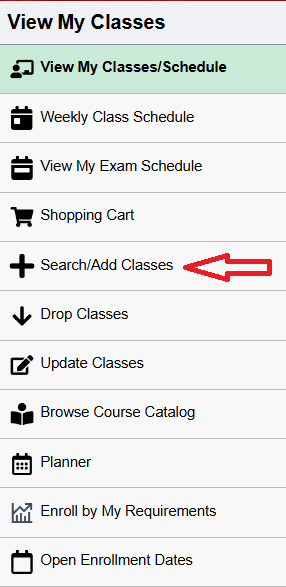
Click Search/Add Classes.
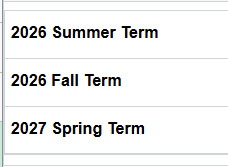
Select the term in which you’d like to register.
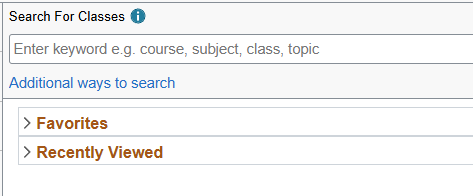
Type in the class you’re looking for. Typing the four letter code works best (i.e. ARTS, ACCT, BUSN) or use the “Additional ways to search” for more options.
Select the course you want. If what you’re looking for doesn’t appear, it likely isn’t offered that term or you may need to search using different terms. Contact the Registrar’s Office or your CAP coach (for traditional undergrads) for additional assistance.
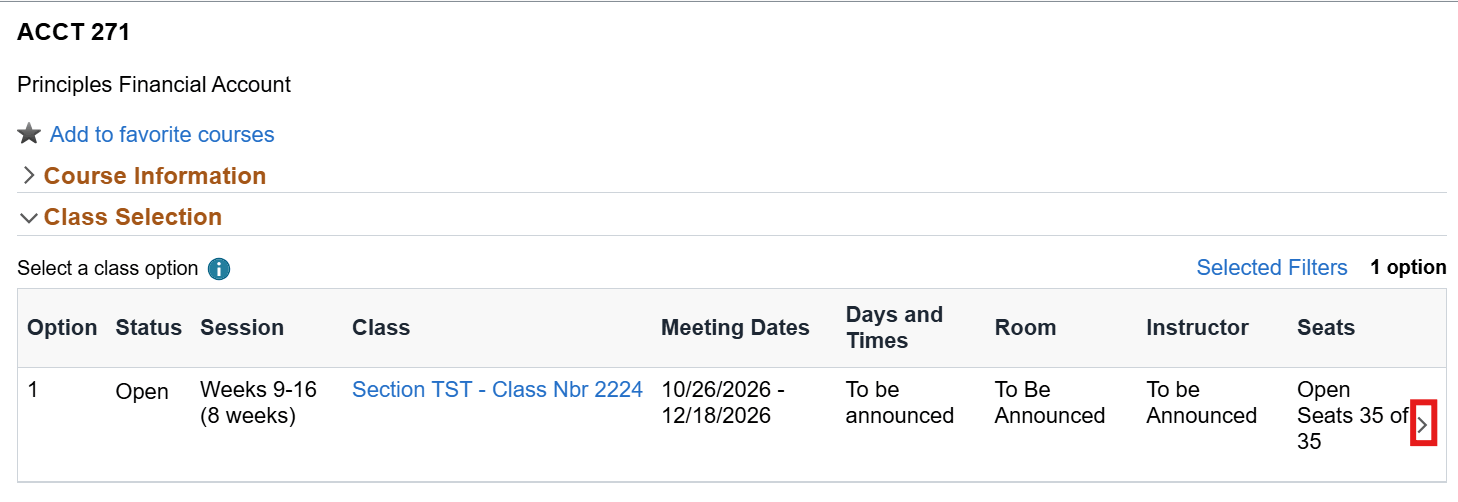
Select the section you want by clicking the arrow on the right of the row. If multiple sections are offered, they will all show with the details of their section code, days/times, instructor, and seats available.
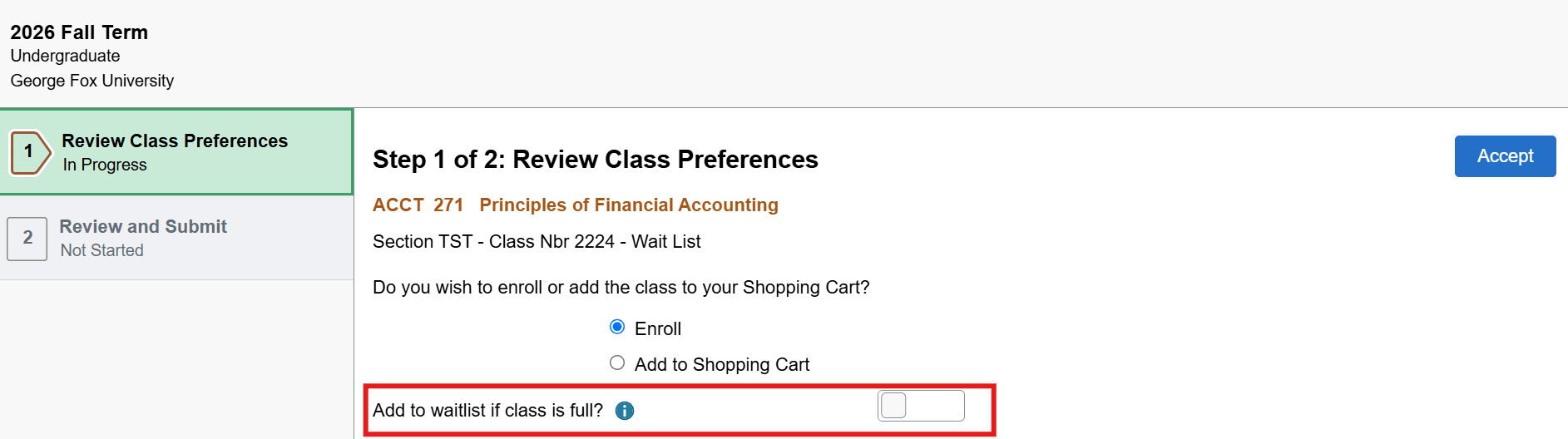
If the class is full and you want to be put on the waitlist select the toggle button to read “Yes”. Click Accept to continue.
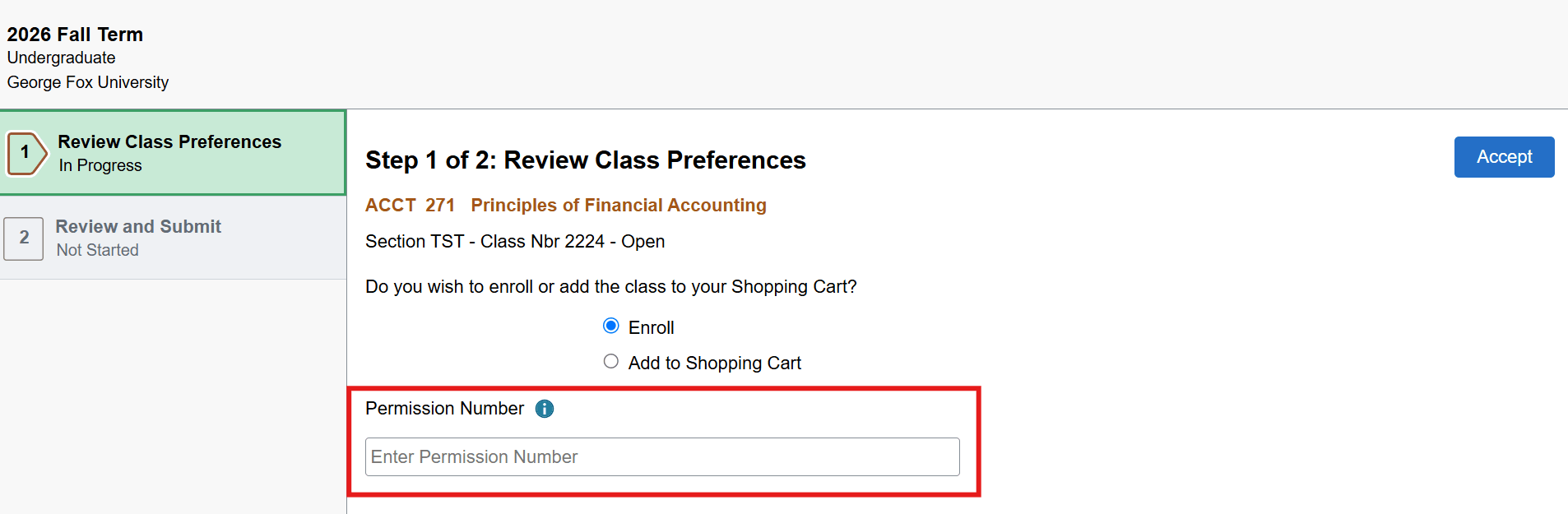
Note: If you have a permission number for a course, please enter it here. If applicable, the Permission Number field will appear. In some cases, a permission number may not be required and the field may be left blank. If you need a number but do not have one, contact the instructor for the class or the Registrar’s Office.
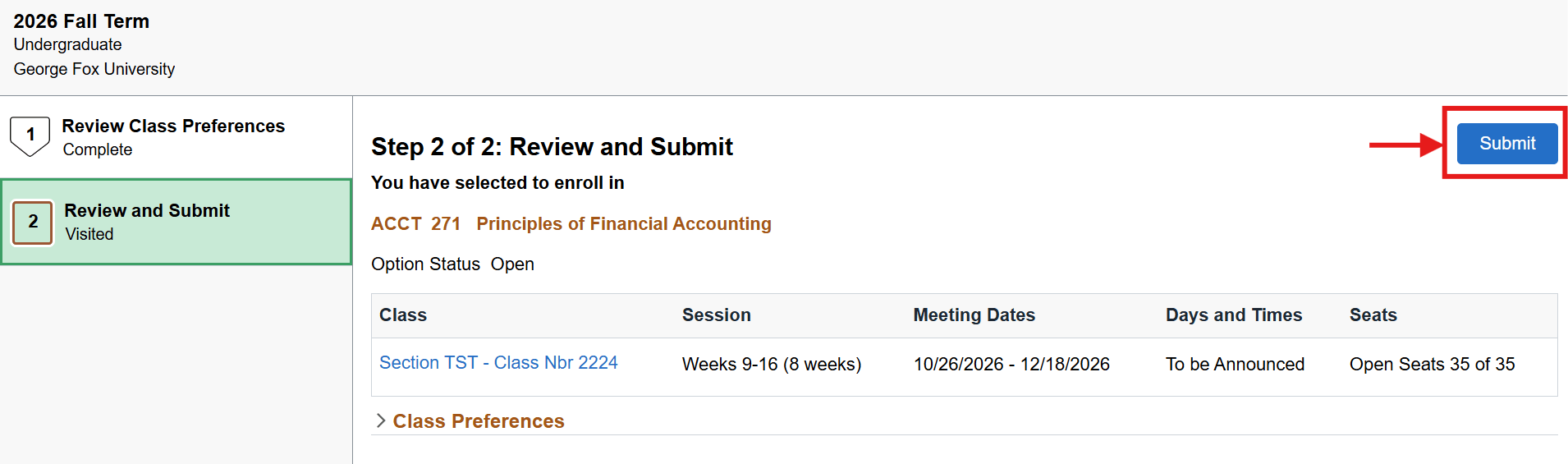
Review your selection to confirm it’s correct. Click Submit to finish.
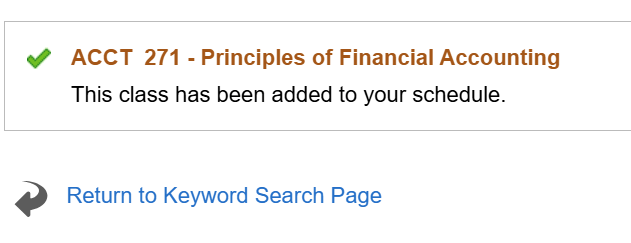
You should see a confirmation message to confirm that you’ve been enrolled